Control Room User Guide
Last changes: Documentation changelog
The FullMag Control Room is the interactive web interface and authoring companion for the FullMag micromagnetics platform. It provides a visual control environment for setting up physical micromagnetic models, configuring materials and geometry, visualizing 3D vector fields, running simulations across FDM and FEM backends, and analyzing numerical observables in real time.
All interactive changes in the Control Room lower directly to FullMag’s canonical ProblemIR and round-trip cleanly with the embedded Python DSL.
Workspace Layout Overview
The Control Room interface is structured into an ergonomic, high-density scientific workspace divided into seven specialized regions:
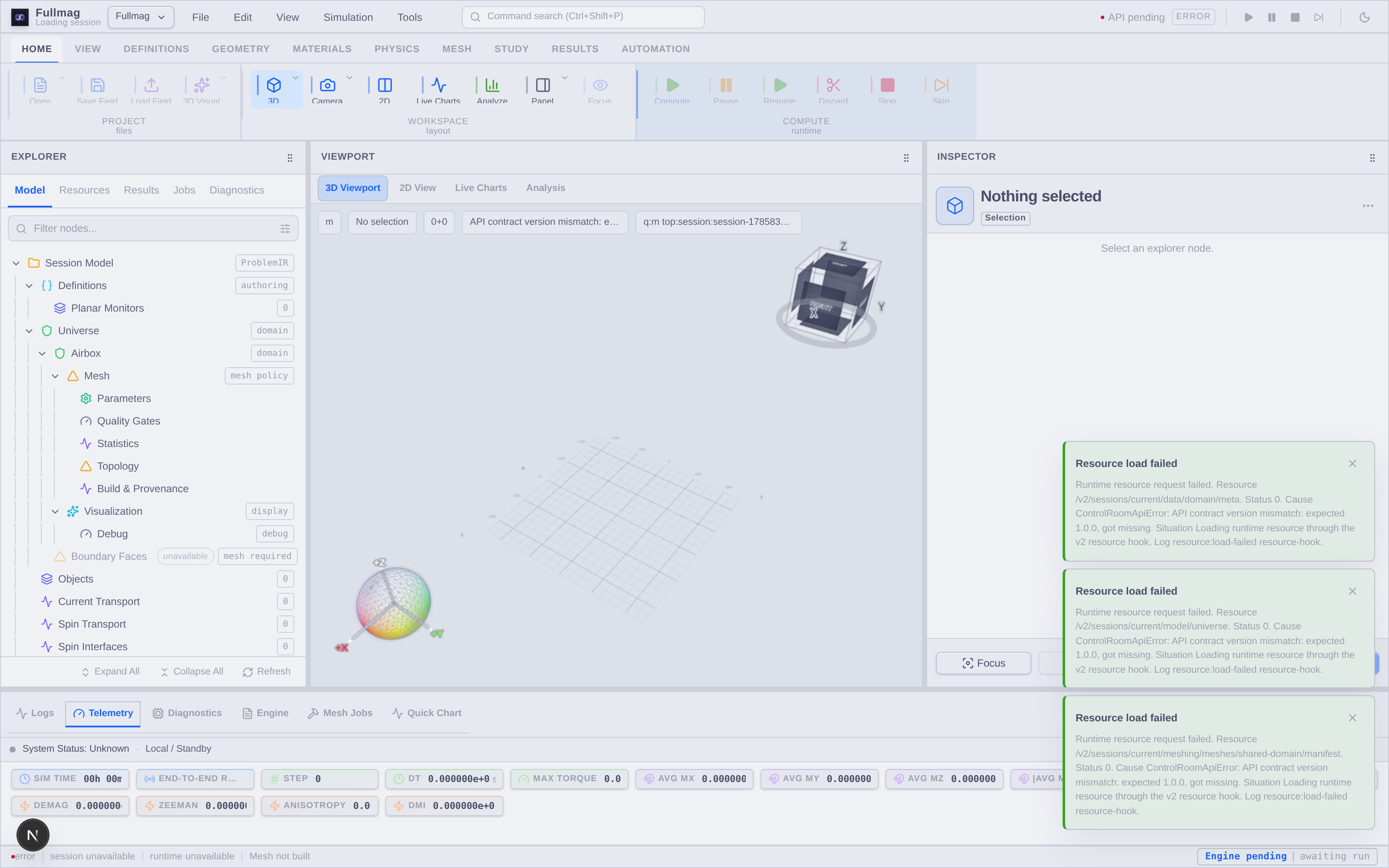
Region |
Component |
Primary Purpose |
|---|---|---|
Top |
Ribbon Toolbar Strip |
Access action groups for geometry creation, material assignment, physics setup, solver configuration, and script export. |
Left |
Explorer Tree Panel |
Inspect and navigate the hierarchical semantic tree of model objects, regions, materials, interactions, meshes, stages, and outputs. |
Center |
3D Interactive Viewport |
High-performance WebGL canvas displaying geometry meshes, magnetization vector field glyphs, colormaps, and spatial bounding boxes. |
Right |
Inspector Panel |
Contextual property editor for configuring selected tree nodes, editing parameters with explicit draft isolation, and applying changes. |
Bottom |
Analysis & Live Charts Panel |
Real-time plotting workspace showing average magnetization trajectories, energy density breakdowns, and spectral FFT responses. |
Footer |
Status & Governance Bar |
Monitor WebSocket session connectivity, active backend engine (FDM/FEM), hardware device (CPU/GPU), precision, and stage execution progress. |
Overlay |
Command Palette |
Global |
Ribbon Toolbar Strip
The Ribbon Toolbar Strip (.fm-ribbon-bar) organizes authoring controls into contextual tabs located along the top of the workspace.
Geometry Tab
The Geometry Tab provides tools for building and transforming physical simulation domains.

Primitive Objects: Add standard geometric shapes including Box, Cylinder, Sphere, and Ellipsoid.
CAD & STL Import: Import STEP, IGES, or STL boundary representations for finite-element discretization.
Transformations: Translate, rotate, and scale selected geometry objects in global or local coordinate frames.
Boolean Operations: Perform CSG operations (Union, Difference, Intersection) between overlapping geometry objects.
Physics & Interaction Tab
The Physics Tab enables physical interactions and external drive fields.

Exchange Interaction: Toggle Heisenberg exchange stiffness \(A_{\text{ex}}\) and surface exchange coupling.
Demagnetization: Configure magnetostatic field calculations via FDM FFT convolution or FEM Poisson airbox/BEM solvers.
Zeeman Field: Apply uniform or spatially varying bias magnetic fields \(\mathbf{H}_{\text{ext}}(t)\).
Anisotropy: Configure uniaxial (\(\mathbf{u}_K\)) or cubic crystalline anisotropy constants (\(K_1, K_2\)).
Dzyaloshinskii–Moriya (DMI): Enable interfacial or bulk DMI vectors (\(D\)).
Spin Torque & Transport: Add Spin-Transfer Torque (STT), Spin-Orbit Torque (SOT), and Oersted field excitations.
Explorer Tree Panel
The Explorer Tree Panel (.fm-explorer-shell) on the left side of the workspace presents the hierarchical semantic structure of the simulation.
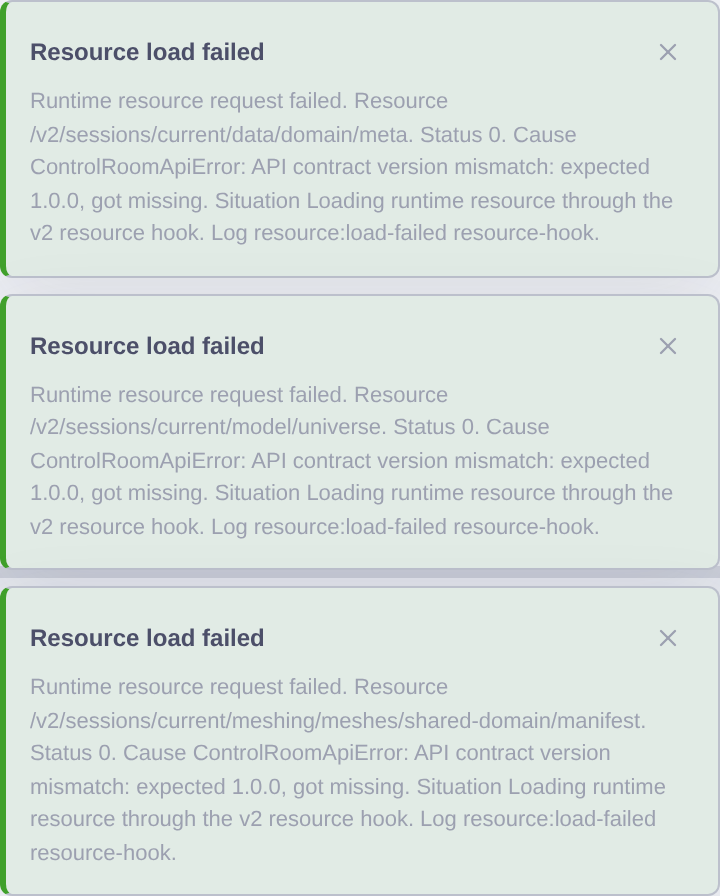
Tree Node Hierarchy
Model Objects: Parent containers for geometric bodies (e.g., nanowires, thin films, magnetic dots).
Sub-Regions: Distinct material zones inside a geometry object (e.g., core, shell, free layer, pinned layer).
Material Assignments: Applied physical material profiles (e.g., Permalloy \(\mathrm{Ni}_{80}\mathrm{Fe}_{20}\), CoFeB, YIG).
Physical Interactions: Active energy terms governing LLG dynamics.
Discretization & Meshing: Grid spacing \((dx, dy, dz)\) for FDM or tetrahedral mesh parameters for FEM.
Stages & Execution Workflows: Ordered simulation sequence (e.g.,
Relaxation\(\rightarrow\)Field Sweep\(\rightarrow\)RF Drive).Outputs & Diagnostics: Configured field snapshots, scalar logs, and solver performance monitors.
Selecting any node in the Explorer tree instantly focuses the corresponding properties in the Inspector Panel.
Interactive 3D Viewport
The 3D Viewport (.fm-viewport-3d) is a Three.js / WebGL rendering canvas that visualizes 3D magnetization vector fields, geometry meshes, and spatial field distribution.
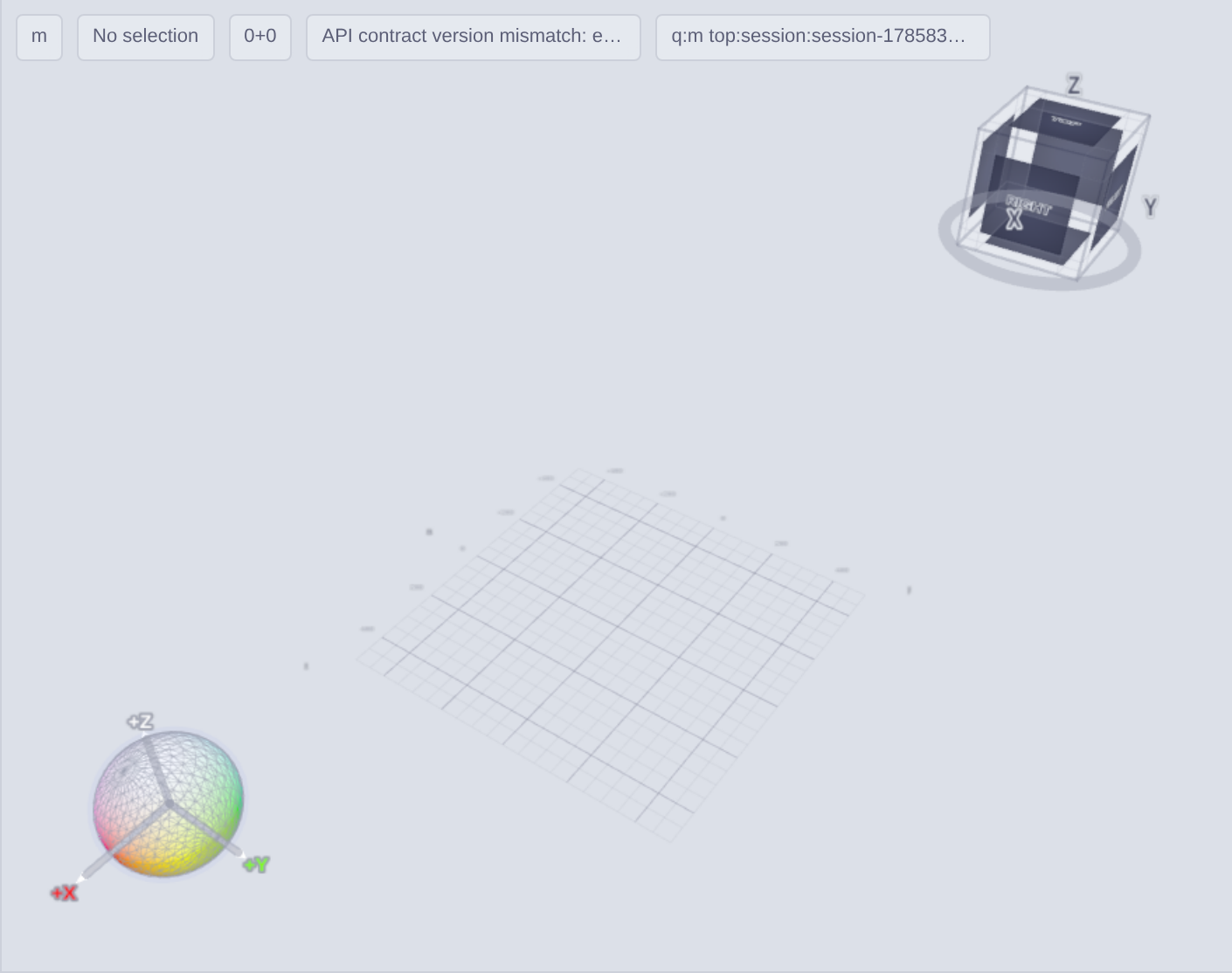
Key Viewport Features
Vector Field Glyphs: Render vector fields (\(\mathbf{m}, \mathbf{H}_{\text{eff}}, \mathbf{H}_{\text{demag}}\)) using arrows, cones, or stream ribbons scaled by magnitude.
Colormaps & Components: Colorize fields using standard scientific colormaps (viridis, plasma, coolwarm, hsv) mapped to vector components (\(m_x, m_y, m_z\)) or norm \(|\mathbf{m}|\).
Surface Projection Modes: For thin films and multi-layer structures, switch between:
Raw Nodal: Direct node-based field interpolation.
Surface Faces: Projection onto top and bottom boundary faces.
Thickness-Average (\(z\)): Depth-averaged 2D slice projection.
Bounding Box & Airbox Wireframe: Overlay spatial dimensions, bounding box cages, and FEM Poisson airbox extent with hidden-edge visual semantics.
HUD & Camera Navigation: Real-time HUD showing vector count, mesh element statistics, camera orientation gizmo, and view presets (Top, Front, Side, Isometric).
Inspector Property Editor
The Inspector Panel (.fm-inspector-shell) on the right side of the workspace displays and edits properties of the currently selected tree node.
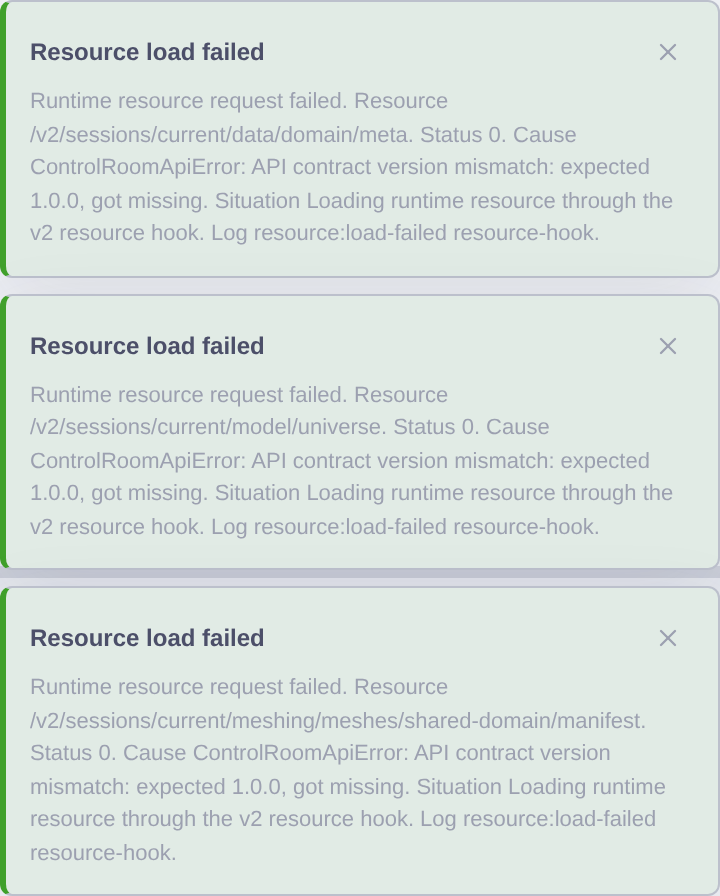
Explicit Draft Editing Workflow
To prevent accidental simulation state corruption during live execution, the Inspector enforces an Explicit Draft Workflow:
Modifying numeric values or dropdown options puts the Inspector into Draft Mode (highlighted with an amber indicator border).
Click Apply Draft to commit changes to the active session and trigger
ProblemIRre-lowering.Click Revert Draft to discard uncommitted edits and restore active session parameters.
Configurable Parameter Groups
Material Parameters: Saturation magnetization \(M_{\text{s}}\), exchange constant \(A_{\text{ex}}\), damping \(\alpha\), gyromagnetic ratio \(\gamma\).
Excitation Parameters: Pulse rise time, frequency \(f\), current density \(\mathbf{J}\), bias field components.
Numerical Controls: Integrator selection (
rk4,rk23,adaptive_heun), error tolerances (tolT,tolA), maximum timestep \(\Delta t_{\max}\).
Status Bar & Session Governance
The Status Bar (.fm-status-bar) at the bottom footer of the window provides continuous operational feedback:

Session Connectivity: Indicates live HTTP/WebSocket connection to the backend runtime.
Active Engine & Device: Displays active solver engine (FDM or FEM) and hardware lane (CPU or GPU).
Execution Progress: Displays stage execution percentage, current step count, physical time \(t\) (in picoseconds/nanoseconds), and solver speed (steps/sec).
Memory Footprint: Monitors GPU VRAM and system RAM allocation for mesh topologies and field buffers.
Command Palette & Keyboard Shortcuts
Press Ctrl + K (or Cmd + K on macOS) anywhere in the workspace to launch the Command Palette:
Search for commands by name (e.g., “Add Box Geometry”, “Export Python Script”, “Toggle Wireframe”).
Switch workspace themes between Catppuccin Mocha (dark theme) and Catppuccin Latte (light theme).
Trigger camera framing (
F) or reset camera view (R).
Control Room crosswalk
Use the authoring path stated in this guide, normally Model Explorer -> Objects followed by the relevant Geometry, Material, Physics, Mesh, or Stage panel. Any parameter shown in Python but not shown in that path is TODO: frontend support; do not describe it as configurable in the UI. See Control Room capability register.
Python/API crosswalk
The runnable Python example and exact argument contract are authoritative. If this guide is conceptual or does not contain a runnable example, it explicitly defers to the linked {doc}``/python-api/index page rather than duplicating an unverified signature.
Physics, limitations, and bibliography
Use the linked physics or numerical-methods page for governing equations and assumptions. This onboarding page does not add a new physical model. Bibliography: see the linked terminal API or physics page; no additional source is claimed here.
Source-code index
No new implementation symbol is introduced by this guide. The exact Python source symbol is owned by the linked terminal API page and the runnable example.